


How To Create Personalized Mobile Wallpapers And Custom Keyboards For Your Device

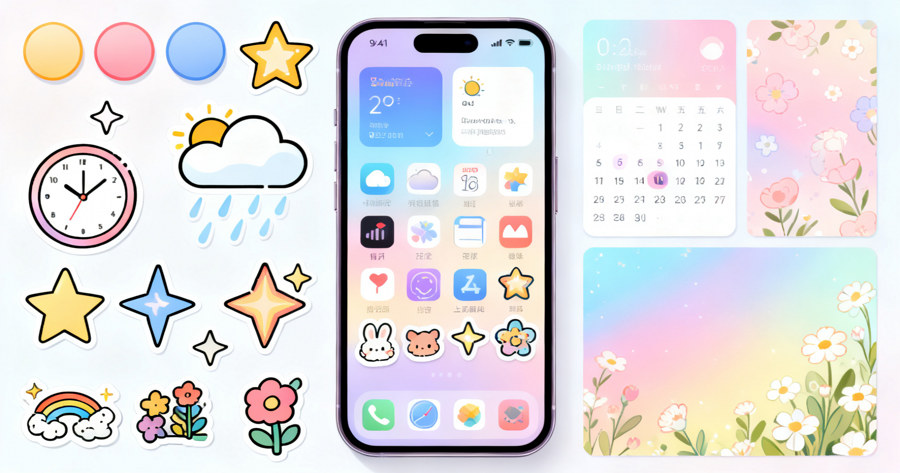
Ready to turn your mobile device into a reflection of your unique style and taste? In this guide, you'll discover how to design custom wallpapers and keyboards that match your preferences perfectly. You’ll walk away with two one-of-a-kind decorations you can start using on your phone immediately.
How will customizing these elements change your daily phone experience? Personalized wallpapers and keyboards make every interaction feel more intentional and fun, rather than using generic preloaded options. But it's important to understand the simple, step-by-step process to get results you love without unnecessary stress.
Why Personalized Mobile Decorations Are Worth Your Time
- Low entry barrier for beginners: You don’t need advanced design skills or expensive software to create high-quality custom decorations. Most free, user-friendly tools have pre-made templates you can adjust to fit your vision in minutes.
- Unlimited creative expression: You can incorporate your favorite colors, photos, quotes, fandom references, or art styles into every part of your device. There are no rigid rules, so you can make something that feels 100% you.
- Shareable designs for community engagement: Once you perfect your style, you can share your creations with online communities of other customization fans. This can help you connect with like-minded people and build a small portfolio of your design work.
- Potential to earn in-game rewards or platform credits: Some customization communities and marketplaces offer virtual rewards for original, high-quality designs that other users download and use. You can turn your hobby into small, fun perks over time.
- Transferable basic design skills: The layout, color theory, and editing skills you learn while making these decorations apply to other graphic design projects too. This means your practice can help you tackle bigger creative projects later.
Step-by-Step Guide to Creating Personalized Mobile Wallpapers and Keyboards
Step 1: Plan your core design concept and gather reference material
First, decide on the overall theme you want to use, such as a favorite game, nature aesthetic, minimalist color palette, or personal photo collection. Save 3-5 reference images to keep your design consistent as you work. Common mistake to avoid: Don’t pick too many clashing elements, as they can make your final design look messy and hard to read.
Step 2: Choose free, user-friendly design tools that fit your skill level
For wallpapers, you can use free tools like Canva, Pixlr, or even built-in phone photo editors that support custom canvas sizes. For keyboards, apps like Gboard, SwiftKey, or Themeboard offer built-in customization features you can use without design experience. Pro tip: Double check that your wallpaper canvas matches your phone’s exact screen resolution for a crisp, uncropped final result.
Step 3: Design your custom wallpaper first
Start by setting your background color or base image, then add small decorative elements like text, stickers, or illustrations that align with your theme. Leave empty space around the edges where your app icons will sit, so important design elements don’t get covered. Test a draft on your home screen before you finalize it to make sure it looks good with your existing app layout.
Step 4: Build your matching custom keyboard
Open your chosen keyboard app and navigate to the custom theme section. You can use a cropped version of your new wallpaper as the keyboard background, or pick a complementary solid color that matches your design. Adjust the key font and border colors to make sure text is easy to read while you type, even with a busy background.
Step 5: Test both designs on your device for functionality
Set your new wallpaper as both your home screen and lock screen, then use your custom keyboard for a few hours to check for any issues. Make sure text on the keyboard is visible in different lighting, and that wallpaper elements don’t clash with your app icon labels. Common mistake to avoid: Don’t use overly bright or high-contrast backgrounds that cause eye strain during long typing sessions.
Step 6: Make small adjustments based on your test run
If you notice any visibility issues or design elements you don’t love, go back to your editing tools and tweak them until you’re happy. You can adjust brightness, move decorative elements, or change font colors as many times as you need. Pro tip: Save multiple versions of your design so you can swap them out whenever you want a fresh look.
Step 7: Share your creations (optional) with relevant online communities
If you’re proud of your final designs, you can post them to Reddit communities, TikTok, or customization forums for other users to enjoy. Include a short note about the tools you used to help other beginners get started. You may even get feedback that helps you improve your next set of designs.
Challenges to Be Aware Of
- Time investment for polished results: Your first few designs may take 1-2 hours to complete as you get used to the tools and figure out your preferred style. This time commitment gets shorter with practice, so try not to get discouraged if your first attempt doesn’t turn out exactly as you imagined.
- Compatibility issues with older devices: Some custom keyboard apps or high-resolution wallpapers may run slowly on older phones with limited processing power. If you notice lag, try reducing the file size of your wallpaper or using a simpler keyboard theme to improve performance.
- Standing out in crowded customization communities: If you choose to share your designs online, you may notice that popular design themes already have hundreds of existing entries. You can set your work apart by adding unique personal touches, like original art or references to niche interests that other creators don’t often use.
Conclusion
You now have the foundation to start creating custom mobile wallpapers and keyboards that match your exact style preferences. You don’t need fancy tools or prior experience to make something you’ll enjoy using every day.
Personalized mobile decorations offer a simple, fun way to make your device feel truly yours, and by mastering these skills, you’re positioning yourself to explore other creative design projects down the line. You can even turn your hobby into small virtual rewards if you choose to share your work.
Don’t wait for the perfect moment. Start brainstorming your first design theme today. Even a simple, minimalist design will feel far more personal than the generic options preloaded on your phone.
FAQ
How long does it take to create my first custom wallpaper and keyboard?
Most beginners can finish their first set of designs in 1 to 2 hours, including planning and testing time. As you get more comfortable with your chosen tools, you may be able to complete new designs in 30 minutes or less. Start with a simple theme for your first attempt to make the process faster and less stressful.
Do I need paid design software to make high-quality custom decorations?
No, you don’t need paid software to create great custom wallpapers and keyboards. Free tools like Canva, Pixlr, and built-in keyboard app customization features offer all the functions most casual users will ever need. You can upgrade to paid tools later if you want to add more advanced features to your designs.
What's the best way to make sure my wallpaper and keyboard match perfectly?
Pick 2 to 3 core colors for your design and use them consistently across both your wallpaper and keyboard. You can also use a cropped section of your wallpaper as the background for your keyboard for a seamless look. Test both elements on your device together before you finalize them to catch any clashing colors or styles.
Can I share my custom designs with other users or earn rewards for them?
Yes, many online customization communities allow you to share your original designs for other users to download. Some platforms also offer in-game rewards or platform credits for designs that get a high number of positive downloads and reviews. Make sure your designs use original assets or royalty-free elements before you share them publicly.



Most Read
How To Play Judge Role Tricks In Among Us For Strategic Wins
How To Earn Extra Income By Packaging And Labeling Various E-commerce Products At Home
How To Get Free Brawl Stars Gems & Rare Skins: Complete Player Guide
How To Uncover The Hidden Secrets Of Your Birth Symbols: Flowers, Animals, Stones, And More
How To Access Poppy Playtime Chapter 5 & Install Mods: A Complete Guide

Create Your New Year's Photos In Just One Second!
Subscribe For New Quizzes

Copyright © 2019-2026 | All rights reserved.