


How To Use Photo Recover-File Recovery APK: A Complete Guide For Android Users

Ever accidentally deleted your favorite vacation photos or important work files from your Android device? In this guide, you’ll discover how to use the Photo Recover-File Recovery APK to get back lost media in just a few simple steps. You’ll walk away knowing how to scan, restore, and protect your files without needing advanced technical skills.
Why should you care about learning this tool properly? Accidental file deletion is one of the most common frustrations for Android users, and this app can help you avoid losing precious memories or critical documents. But it's important to understand the right process to maximize your recovery chances, so we’ll break everything down clearly for you.
Why Photo Recover-File Recovery Is Worth Your Time
- Low technical barrier: You don’t need root access or specialized tech knowledge to use the basic features of this APK. The intuitive interface is designed for casual users, so you can start scanning for files minutes after installation.
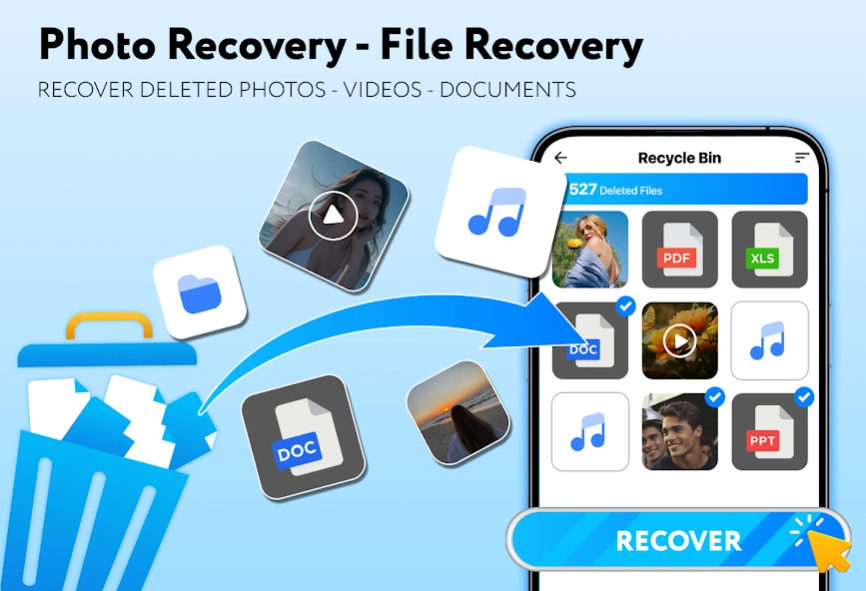
- Supports multiple file types: Beyond photos, the app can recover lost videos, audio files, and even some document formats from your device storage and SD card. This versatility means you don’t need separate tools for different file recovery needs.
- Fast scanning process: Most basic scans take 5 to 15 minutes to complete, depending on your storage size, so you don’t have to wait hours for results. You can quickly check if your lost files are recoverable before committing to any extra steps.
- Offline functionality: The app works entirely offline, so you don’t have to upload your personal files to a third-party cloud server to recover them. This adds an extra layer of privacy for your sensitive photos and documents.
Step-by-Step Guide to Photo Recover-File Recovery
Step 1: Download and install the official Photo Recover-File Recovery APK
First, get the APK from a trusted verified source to avoid installing fake or malware-ridden versions that could harm your device. Enable installation from unknown sources in your Android security settings if you haven’t already, then run the installer file. Once installed, open the app and grant the required storage access permissions so it can scan your device.
Pro tip: Always check user reviews and app ratings before downloading an APK from a third-party source.
Step 2: Select the file types you want to recover
On the app’s home screen, you’ll see checkboxes for different file categories like photos, videos, audio, and documents. Tick the boxes for the types of files you’re trying to get back, as this will speed up the scanning process by filtering out irrelevant results. If you’re not sure what type of file you lost, you can select all categories, though the scan will take slightly longer.
Common mistake to avoid: Selecting only one file type if you’re unsure, as you may miss related files that were deleted at the same time.
Step 3: Choose the storage location to scan
Next, select whether you want to scan your device’s internal storage or external SD card, depending on where the lost files were stored before deletion. If you’re not sure, you can select both locations to cover all possibilities. Keep in mind that scanning an SD card may take longer if it has a large storage capacity.
Step 4: Run the initial scan and review results
Tap the “Start Scan” button to begin the recovery process, and keep the app open while the scan runs, as closing it may interrupt the process. When the scan finishes, you’ll see a list of recoverable files sorted by category and date. You can preview image and video files directly in the app to confirm they are the ones you want to restore.
Pro tip: Use the filter feature to sort results by file size or date modified to find your lost files faster.
Step 5: Restore selected files to a safe location
Check the boxes next to all the files you want to recover, then tap the “Restore” button. Choose a safe storage location for the recovered files, preferably different from the original location to avoid overwriting other recoverable data. You can save them to your internal storage, SD card, or even a connected cloud drive for extra backup.
Step 6: Enable automatic backup for future protection
Once you’ve recovered your files, navigate to the app’s settings menu and turn on the optional automatic backup feature. This feature will save copies of your new photos and files to a separate folder, so you can restore them faster if you accidentally delete them again. You can adjust the backup frequency to match how often you save new files to your device.
Challenges to Be Aware Of
- Overwritten files cannot be recovered: If new data has been saved to the same storage space where your lost files were stored, they may be permanently overwritten and unrecoverable. As soon as you notice files are missing, stop using your device as much as possible to avoid writing new data before running a scan.
- Not all file formats are supported: The app works best with common image, video, and document formats, but it may not recover rare or specialized file types used by specific apps. Check the app’s supported format list before running a scan to set realistic expectations for what you can get back.
- Deep scans may take longer on large storage: If you have a device with 128GB or more of storage, a full deep scan can take 30 minutes or more to complete. Make sure your device has at least 50% battery before starting a deep scan, or plug it into a charger to avoid interruptions.
Conclusion
You now have the foundation to start using Photo Recover-File Recovery APK to get back your lost files quickly and safely. The steps we covered work for most casual recovery needs, so you can test them out the next time you accidentally delete a file.
Photo Recover-File Recovery offers a convenient, offline way to recover lost media without paying for expensive professional recovery services, and by mastering it, you’re positioning yourself to avoid permanent data loss in the future. The privacy-focused design also keeps your personal files secure during the recovery process.
Don't wait for the perfect moment. Start a test scan on your device today to see what old files you might be able to recover. The more you practice with the tool, the faster you’ll be able to use it if you ever have an accidental deletion emergency.
FAQ
How long does it take to recover files using this APK?
Basic scans for recently deleted photos usually take 5 to 15 minutes, depending on your storage size. Deep scans for older or overwritten files may take 30 minutes to an hour for devices with large storage capacities. Start with a quick scan first to check for your most recently lost files, then move to a deep scan if needed.
Do I need to root my Android device to use this app?
No, you don’t need root access for most basic recovery features of the APK. The app can scan and recover files from accessible internal and SD card storage without modifying your device’s system settings. Root access may be required for more advanced deep scan features, but these are only needed for rare recovery cases. Try the standard non-root features first before considering any system modifications.
What's the best way to maximize my chances of recovering lost photos?
Stop using your device immediately after you notice the files are missing, as any new data you save can overwrite the lost files. Run the scan as soon as possible, and prioritize recovering the most important files first before saving any new data to your device. You should also avoid restarting your device multiple times before running the scan, as this can write temporary system data to your storage.
Can I use this app to recover files from a broken or damaged device?
The app works on devices that can still turn on and run normal apps, even if the screen is partially damaged. If your device will not turn on or is not recognized by your system, you may need professional hardware recovery services instead. For partially functional devices, connect it to a charger and run the scan as soon as you can to recover files before the device stops working entirely.


RECOMMEND ARTICLES
Most Read

How To Get All Kinds Of Free Items In Roblox Brookhaven Legally

How To Change Your Battery Icon To An Emoji On IOS

The Insider’s Guide To Costco Wine Cellars 2026: Smart Shopping Tips And High-Value Finds

How To Get Free Characters And Avatars In Avatar World

How To Build Your Dream PC Via PC Building Simulator

Is It Worth Pursuing Allergy Treatment?
Subscribe For New Quizzes


Copyright © 2019-2026 | All rights reserved.