


How To Create Personalized Mobile Phone Desktop Decorations: A Step-by-Step Guide For All Users

Ready to turn your generic mobile desktop into a space that feels uniquely yours? In this guide, you'll discover how to design and apply personalized decorations that match your style, preferences, and daily usage habits. You'll walk away with a desktop that is both functional and visually pleasing every time you unlock your phone.
Why should you care about customizing your phone desktop? Your phone is one of the devices you interact with most every day, so a personalized space can boost your mood and make routine tasks smoother. But it's important to understand the core benefits and simple steps first to avoid unnecessary frustration along the way.
Why Personalized Mobile Phone Desktop Decorations Are Worth Your Time
- Low barrier to entry: You don't need advanced design skills or expensive tools to get started. Most customization apps are free and come with pre-made assets that you can mix and match to suit your taste.
- Unlimited creative expression: You can incorporate your favorite colors, photos, art styles, and even themed widget sets to reflect your hobbies, interests, or current mood. No two customized desktops have to look exactly the same.
- Improved daily functionality: You can organize apps and widgets based on how you actually use your phone, cutting down the time you spend searching for specific apps or checking important information.
- Portfolio and community engagement opportunities: If you enjoy the process, you can share your designs on social platforms to connect with other customization enthusiasts, and even build a small following for your work.
- Transferable design skills: The basic layout, color matching, and user experience choices you practice here can apply to other design projects, from social media graphics to simple website layouts.
Step-by-Step Guide to Personalized Mobile Phone Desktop Decorations
Step 1: Plan your desktop concept and layout
Start by identifying your priorities: do you want a minimal look, a theme based on your favorite game/show, or a productivity-focused setup? Note which apps you use most often, and decide where you want to place them for easiest access. You can sketch a quick rough draft on paper or a notes app to map out your idea.
Pro tip: Pick 2-3 main colors for your theme to keep the design cohesive and avoid visual clutter.
Step 2: Gather necessary tools and assets
Most smartphones have built-in customization options, but you can download free apps like widget makers, icon pack apps, and wallpaper platforms for more options. Collect wallpapers, icon sets, and widget templates that match your chosen theme, and save them to your phone's gallery. Make sure any apps you download are compatible with your phone's operating system.
Common mistake to avoid: Don't download too many random assets at once, as this will make the organization process more confusing later.
Step 3: Apply and adjust your base wallpaper
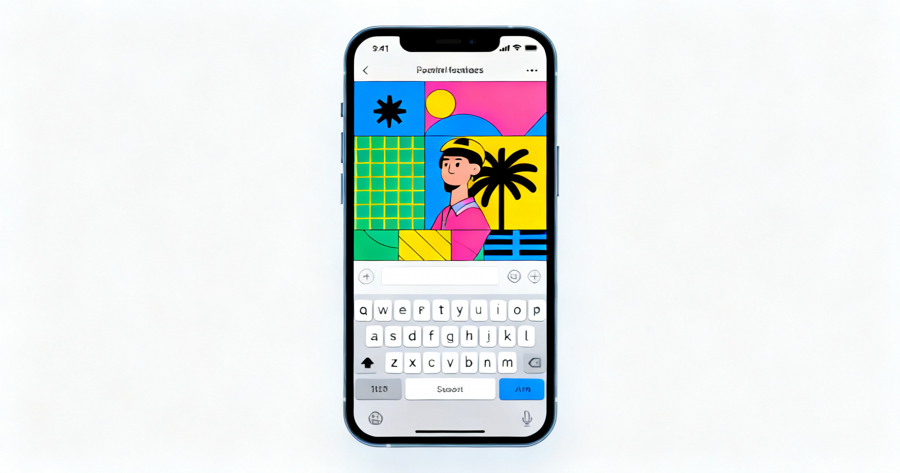
Set your chosen wallpaper first, as it will act as the foundation for all other elements on your desktop. Adjust the positioning and blur level if needed to make sure icons and widgets will be clearly visible against it. You can use a solid color, gradient, photo, or illustrated design depending on your preference.
Step 4: Customize app icons and folders
Replace default app icons with your downloaded icon pack, or create custom icons using your own images if your launcher allows it. Group related apps into folders with clear names or themed icons to keep your desktop organized. You can also leave the most frequently used apps outside of folders for one-tap access.
Step 5: Add and configure functional widgets
Pick widgets that serve your daily needs, such as calendar, to-do list, weather, clock, or music player widgets. Resize and position them to fit your planned layout, and adjust their color scheme to match your wallpaper and icon set. Test each widget to make sure it works properly and displays the information you need.
Step 6: Test and refine your setup
Use your customized desktop for 1-2 days to see if the layout feels intuitive and functional. Adjust the position of apps or widgets if you find yourself struggling to reach them, or swap out elements that don't feel as good as you expected. Small tweaks can make a big difference in how usable your final setup is.
Step 7: Share your design (optional)
If you're proud of your final desktop, you can take a screenshot and share it on social media or customization communities. You can also save your setup as a backup so you can reapply it if you reset your phone or get a new device. Many users also swap theme packs with other enthusiasts to try new styles.
Challenges to Be Aware Of
- Time investment for fine-tuning: Creating a polished, functional setup can take 1-3 hours of planning and adjustments, especially if you're trying a complex theme for the first time. You can break the process into small 20-minute sessions over a few days to avoid feeling burnt out.
- Compatibility issues with certain devices: Some older phones or specific operating system versions may not support third-party icon packs or advanced widget customizations. Check your device's support documentation first, and adjust your plan to work with the features your phone does offer.
- Risk of over-cluttering your desktop: It can be easy to add too many widgets, icons, and decorative elements that look good but make your desktop harder to navigate. Stick to your initial layout plan, and remove any elements that don't serve a functional or clear aesthetic purpose.
Conclusion
You now have the foundation to start creating personalized mobile phone desktop decorations that fit your exact needs and style. You don't need fancy skills to build something you love, and you can adjust your setup as often as you want to match new preferences.
Personalized mobile phone desktop decorations offer a simple, accessible way to make a device you use every day feel more intentional and enjoyable. By mastering these basic skills, you're positioning yourself to create custom setups that work for you, rather than adapting to a default layout.
Don't wait for the perfect moment. Start planning your first theme concept today. Even small changes, like a new wallpaper and a couple of useful widgets, can make a big difference in how you feel about using your phone every day.
FAQ
How long does it take to create a basic personalized desktop setup?
A simple, functional setup usually takes between 30 minutes and 1 hour to complete, including planning and asset gathering. More complex themed setups with custom icons and multiple widgets may take 2-3 hours total. You can always start small and add more elements later as you have time.
Do I need to pay for special apps to customize my phone desktop?
Most basic customization features, including wallpaper changes, folder organization, and built-in widgets, are completely free on most modern phones. Many free apps offer high-quality icon packs and widget templates for non-commercial use. Paid premium assets are optional, and you can create a great setup without spending any money.
What's the best way to make my desktop look cohesive without being boring?
Stick to a limited color palette of 2-3 main colors, and match your icons and widgets to that palette. Leave some empty space on your desktop to avoid visual clutter, and add one or two small decorative elements that fit your theme. You can also swap out small elements like wallpapers every few weeks to keep the look fresh.
Can I share my custom desktop designs with other people?
Yes, you can take screenshots of your setup and share them on social media or customization communities. You can also create guide packs that include links to the assets you used, so other people can replicate your design if they want. Just make sure you have permission to share any third-party assets you included in your setup.

Most Read

How To Achieve Maximum Velocity In Monkey Escape Using The +1 Speed Modifier

How To Get Started With Brookhaven RP Free Premium: A Complete Player Guide
How To Get 99 Nights In The Forest Codes: A Complete Step-by-Step Guide
How To Master Steal A Brainrot Theft Techniques: A Step-by-Step Guide For Players

When Will You Be Rich Based On Your Zodiac Sign?

What’s The Initial Of Your Crush Name?
Subscribe For New Quizzes

Copyright © 2019-2026 | All rights reserved.